The Tecno Spark 4 (model KC8 or KC2 variants) is a budget-friendly smartphone known for its decent battery life, dual cameras, and reliable performance on Android 9 Pie with HiOS. However, like many Android devices, its physical power button can fail due to wear and tear, liquid damage, manufacturing defects, or accidental drops. When the power button stops working, turning on or restarting the phone becomes a challenge—especially if the device is completely powered off.
In this detailed guide you’ll learn multiple proven methods to turn on your Tecno Spark 4 without the power button. These techniques work for most Android devices, including Tecno, Infinix, and itel models from Carlcare. We’ll cover everything from simple charger tricks to advanced ADB methods, battery removal, and long-term software solutions.
Whether your Tecno Spark 4 is dead, stuck in a boot loop, or the power key is unresponsive, follow these steps carefully. Always prioritize safety to avoid damaging your device further.
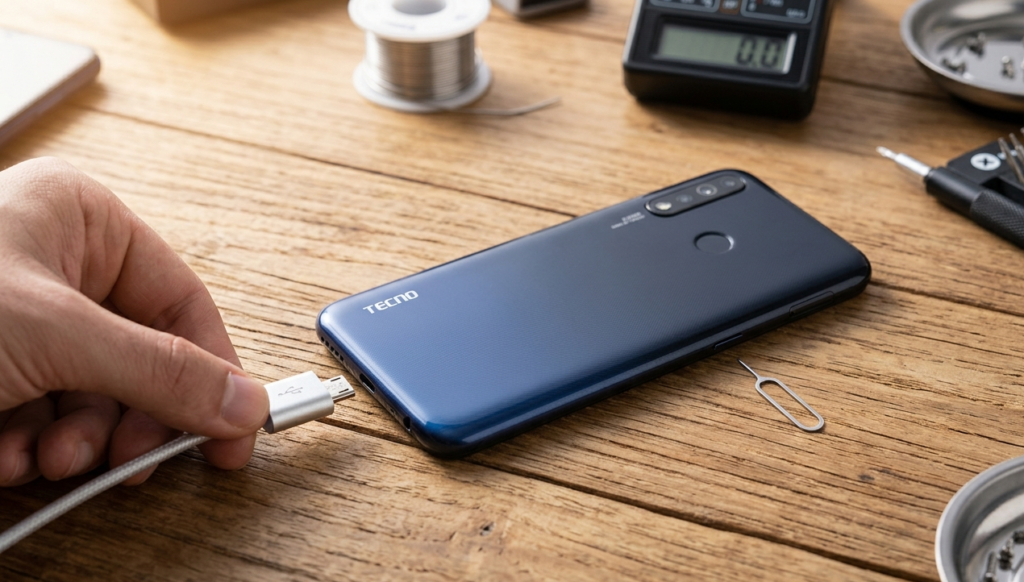
Why Does the Power Button Fail on Tecno Spark 4?
Common reasons include:
- Mechanical wear: Frequent pressing wears out the switch.
- Flex cable damage: The power/volume key flex ribbon can tear or corrode.
- Liquid or dust ingress: Moisture affects the button contacts.
- Software glitches or faulty power IC on the motherboard.
- Physical impact: Drops can misalign or break internal components.
Symptoms: Phone doesn’t respond to button press, no vibration/LED feedback, or it turns on only when plugged in. If your Tecno Spark 4 won’t turn on at all, start with basic troubleshooting before hardware fixes.
Method 1: Plug in the Charger (Easiest and Most Effective for Dead Phones)
Many Android phones, including the Tecno Spark 4, are designed to automatically power on or wake up when connected to a charger, especially if the battery has some residual charge.
Steps:
- Ensure your phone has at least 5-10% battery (or is completely drained but not damaged).
- Use the original Tecno charger and cable for best results. Third-party chargers may not trigger the boot sequence reliably.
- Plug the charger into a wall socket.
- Connect the cable to your Tecno Spark 4.
- Wait 10-30 seconds. The screen may light up, show the charging animation, or boot directly to the lock screen.
Tips for Success:
- If nothing happens, try a different cable or wall adapter.
- Leave it plugged in for 15-30 minutes if the battery is deeply discharged.
- Some users report success by plugging into a PC USB port instead of a wall charger.
This method works because the charging circuit signals the power management IC to initiate boot. It’s the first solution recommended by Carlcare service centers for Tecno devices.
Method 2: Volume Button + Charger Combo (Recovery Mode Trick)
This is one of the most reliable ways to turn on Tecno Spark 4 without power button when the device is fully off.
Detailed Steps:
- Ensure the phone is completely powered off (no lights or screen activity).
- Press and hold the Volume Up button (or try Volume Down in some variants).
- While holding the volume button, plug in the charger cable.
- Keep holding for 10-20 seconds until the recovery menu (Android recovery or HiOS recovery) appears.
- Use the Volume Up/Down buttons to navigate to “Reboot system now” or “Reboot”.
- Select it (some models auto-select after a few minutes if left on the option).
- Wait patiently— the phone should reboot into normal mode within 1-3 minutes. Do not unplug the charger during this process.
Variations:
- Try Volume Down + charger if Volume Up doesn’t work.
- Hold both Volume Up + Volume Down together while plugging in (reported to work on several Tecno Spark models).
- If the phone enters Fastboot or Download mode, navigate to reboot using volume keys.
Why it works: Holding volume keys forces the bootloader to detect a key combination, bypassing the faulty power button and entering recovery. This is widely used for Tecno Spark series phones.
Method 3: Remove and Reinsert the Battery (For Non-Sealed Models)
The Tecno Spark 4 has a removable back cover in many variants, allowing battery access.
Warning: This involves opening the phone. Proceed only if comfortable; otherwise, visit a Carlcare center. Improper handling can void warranty or damage components.
Steps:
- Power off the phone (if possible) and remove the SIM/SD tray.
- Gently pry open the back cover using a plastic tool (avoid metal to prevent scratches).
- Locate the battery connector and carefully disconnect it.
- Wait 30-60 seconds.
- Reconnect the battery firmly.
- Reassemble the back cover.
- Plug in the charger. The phone often powers on automatically after battery reconnection.
This method resets the power circuit completely. Many repair videos specifically demonstrate this for Tecno Spark 4 (KC2/KC8).
Precautions:
- Work in a clean, static-free environment.
- Do not force connectors.
- Inspect for corrosion or damaged flex cables while open.
Method 4: Use Accessibility Menu for Restart (When Phone is Already On)
If your Tecno Spark 4 is powered on but the power button doesn’t work for locking/restarting:
- Go to Settings > Accessibility (or System > Accessibility on some Android versions).
- Enable Accessibility Menu or Interaction Controls.
- Grant necessary permissions.
- A floating shortcut appears on your screen.
- Tap the shortcut > Select Power > Choose Restart or Power off.
This built-in Android feature creates a virtual power menu, eliminating reliance on the physical button. It’s ideal for daily use once the phone is running.
Method 5: Scheduled Power On/Off Feature (Preventive Long-Term Solution)
Tecno’s HiOS skin includes a Schedule Power On/Off option.
How to Set It Up (if phone is accessible):
- Go to Settings > Battery or search for “Schedule power on/off”.
- Set a daily time for automatic power on.
- The phone will turn itself on at the scheduled time without any button press.
This is useful if you can keep the phone in a low-power state or use it with the charger trick initially.
Method 6: ADB and Fastboot Commands (Advanced Method)
For tech-savvy users with a computer:
Requirements:
- Install ADB & Fastboot (Platform Tools from Google).
- Enable USB Debugging (if phone was previously on and accessible).
- MediaTek drivers for Tecno Spark 4.
Steps:
- Connect the phone via USB (use charger trick to turn it on first if needed).
- Open Command Prompt in the platform-tools folder.
- Type
adb devicesto check connection. - Use
adb rebootto restart. - For deeper control:
adb reboot recoveryorfastboot reboot.
If the bootloader is accessible, you can force a reboot. Note: Unlocking bootloader on Tecno devices may require additional steps and will wipe data.
Caution: This requires prior setup and may not work if the phone is completely dead.
Method 7: Professional Repair and Hardware Fixes
If software methods fail, the issue is likely hardware:
- Power key flex cable replacement (common fault on Spark 4).
- Power IC or switch repair via jumper techniques (many repair videos show diode mode testing and track repair).
- Visit an authorized Carlcare service center—they specialize in Tecno, Infinix, and itel phones and can fix power button issues quickly and affordably.
Signs you need repair:
- No response even with charger + volume combo.
- Phone only works intermittently.
- Visible damage or liquid indicators.
Repair costs are usually low for button-related issues (flex cable ~$5-15 + labor).
Additional Troubleshooting Tips for Tecno Spark 4
- Force discharge: Let the battery drain completely (leave it on until it dies), then charge using Method 1 or 2.
- Clean contacts: If accessible, clean volume/power key area with isopropyl alcohol (after disassembly).
- Avoid overheating: Do not force buttons excessively.
- Backup data: Once on, immediately back up via Google Drive or HiOS cloud.
- Software update: After turning on, check for HiOS updates in Settings > System Update, as they can fix power management bugs.
- Protective case: Remove any thick case that might press on buttons.
Preventing Future Power Button Problems
- Use a good-quality screen protector and case.
- Avoid pressing the power button too hard.
- Enable Double-tap to wake or Lift to wake in settings if available (reduces button usage).
- Regularly clean the phone and avoid moisture.
- Consider mapping the power function to volume buttons via accessibility or third-party apps (with caution).
Frequently Asked Questions (FAQs)
Q1: Will these methods erase my data on Tecno Spark 4?
No, most methods (charger, volume+charger, accessibility) do not erase data. Battery removal or recovery reboot is generally safe.
Q2: My Tecno Spark 4 won’t turn on even with charger. What now?
Try battery disconnection/reconnection. If unsuccessful, it could be a dead battery, faulty charging port, or power IC issue—take it to Carlcare.
Q3: Can I use any charger?
Prefer original or high-quality cables. Cheap chargers may not deliver stable voltage.
Q4: Is there a virtual power button app?
Yes, but enable Accessibility Menu first for built-in solution. Avoid unknown apps from Play Store for security.
Q5: Does this work on other Tecno models like Spark 4 Air or Go?
Yes, the volume + charger and recovery methods are similar across the Spark series and other Tecno phones.
Conclusion
Turning on your Tecno Spark 4 without the power button is straightforward with the right techniques. Start with the charger method or Volume Up + plug-in trick—these resolve the issue for most users without opening the phone. For recurring problems, set up the Accessibility Menu or schedule power on for convenience.
If hardware repair is needed, professional service from Carlcare ensures longevity. With over 1000 words of actionable advice, this guide equips you to handle power button failure confidently.